显示标签为“Arduino”的博文。显示所有博文

2017年12月5日星期二

How to make a Heart Rate Monitor

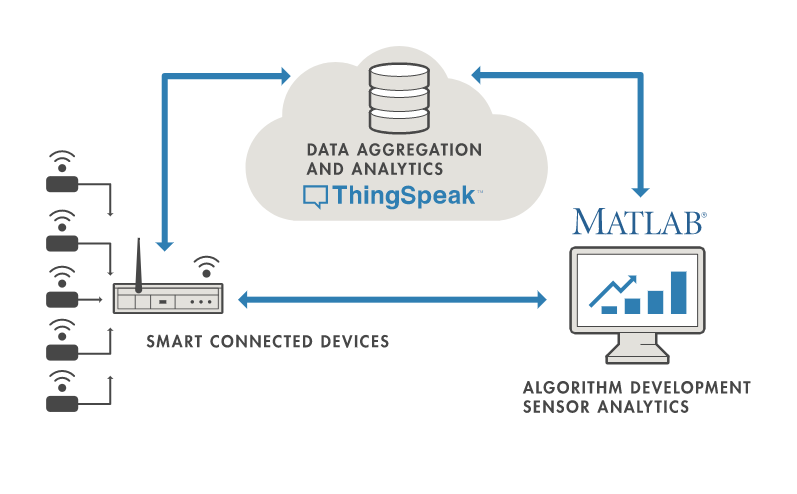
In this project we are going to make a Heart Beat Detection and Monitoring System using Arduino that will detect the heart beat using the Pulse Sensor and will show the readings in BPM (Beats Per Minute). It will also send the readings to ThingSpeak server using the Wi-Fi Bee module ESP8266, so that Heart Beats can be monitored from anywhere in the world over the internet. ThingSpeak is a great source for displaying the data online and you can access the data from ThingSpeak at any time and at any place.


Components Required
Hardware:

Arduino UNO Rev3I/O Expansion Shield for ArduinoHeart Rate SensorESP8266 WiFi Bee

Software or online services:
Arduino IDE
Thingspeak API
Setting up the ThingSpeak

ThingSpeak provides very good tool for IoT based projects. By using ThingSpeak site, we can monitor our data and control our system over the Internet, using the Channels and webpages provided by ThingSpeak. ThingSpeak ‘Collects’ the data from the sensors, ‘Analyze and Visualize’ the data and ‘Acts’ by triggering a reaction. We have previously used ThingSpeak in Weather station project using Raspberry Pi and using Arduino, check them to learn more about ThingSpeak. Here we are briefly explaining to use ThingSpeak for this Beat Detection and Monitoring System. The ThingSpeak service is operated by MathWorks.

First of all, user needs to Create a Account on ThingSpeak.com, then Sign In and click on Get Started.

After creating an account, go to channels and create a new channel. Now write the name of the Channel and name of the Fields. Also tick the check box for ‘Make Public’ option below in the form and finally Save the Channel. Now your new channel has been created.

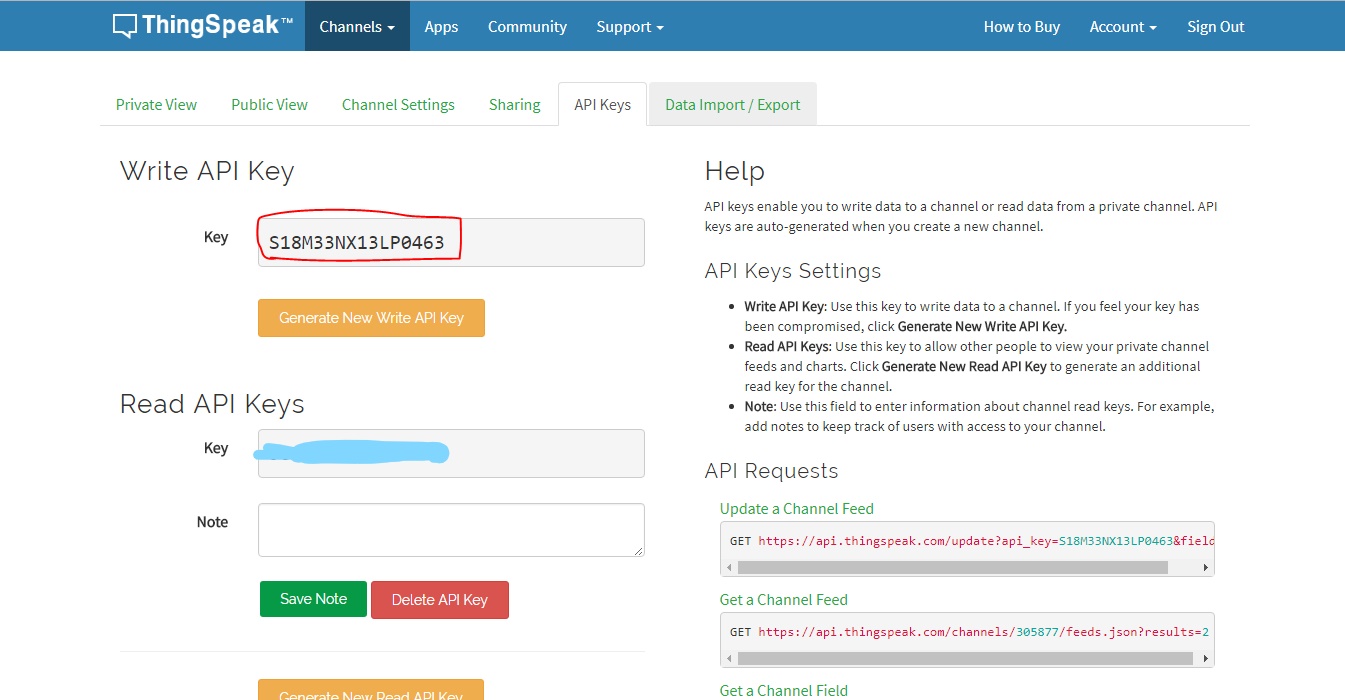
After this go to API keys and copy your Write API key. You will need this in the code. Check the Full Code at the end.


Circuit and Explanation

ESP8266 WiFi Bee

Wifi Bee-ESP8266 is a Serial-to-WIFI module using XBEE design in a compact size, compatible with XBEE slot, applicable to a variety of 3.3V single-chip system. It can be used for Arduino, wireless data transfer, remote control. On-board switch can be used to easily select the Startup module or Upgrade firmware. ESP8266 arduino module has a powerful on-chip processing and storage capacity, built-in 32-bit processor, built-in Lwip protocol stack. Support AP+STA mode co-exist.

Heart Rate Sensor Module

The DFRobot heart rate sensor is a thumb-sized heart rate monitor designed for Arduino microcontrollers.

This heart rate monitor sensor is a pulse sensor which is developed based on PPG techniques. This is a simple and low-cost optical technique that can be used to detect blood volume changing in the microvascular bed of tissues. It is relatively easy to detect the pulsatile component of the cardiac cycle according to this theory.

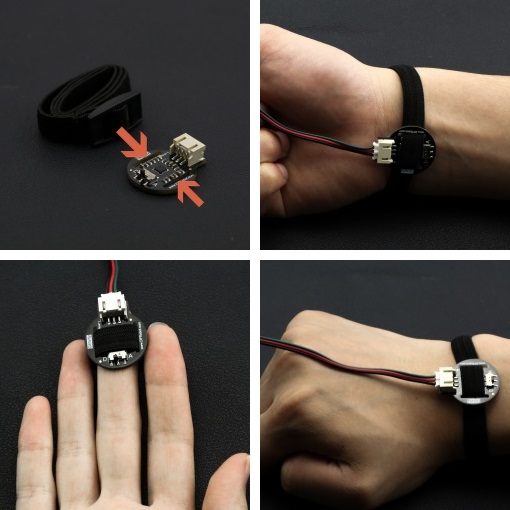
The sensor has two holes that you can use to attach to your belt. You can wrap on your finger, wrist, earlobe or other areas where it has contact with your skin.

I/O Expansion Shield
To connect these components with the Arduino, we need the expansion shield which can connect them with the microcontroller with ease.

Connections

            1. Stack the I/O Expansion Shield on the Arduino UNO.
            1. Take the Heart Rate Sensor Module and put the strap through the holes in the modules so that you can wrap on your finger, wrist, earlobe or other areas where it has contact with your skin.
            1. Connect the Heart Rate Sensor Module to A1 pin on the analog headers on the expansion shield. Mind the colors of headers to the wires, that is, red to red, etc.
            1. In the Wifi Bee slot on the shield, put the ESP8266 WiFi Bee.


            Uploading and testing

                                        1. Wrap the strap around your finger or wrist.
                                        1. Put the switch on the module to 'A' for analog mode.
                                        1. Now, upload the sketch for testing the module for the first time.
                                        1. Open serial plotter and wait for 5 seconds and stay calm.
                                        1. You will see the graph of the heart beats.
                                        1. Try to block the blood flow through using another hand.
                                        1. The graph line will become straight for some time and will come to normal stage as the blood finds way for circulation if all the capillaries aren't blocked properly.


                                        NOTE:

                                        1. This product is NOT a professional medical device and should not be used to diagnose or treat medical conditions.

                                        2. This sensor is designed to work when the user is not moving. If used while moving it will give inaccurate results.

                                        • Now, upload the main code to the Arduino.
                                        • Remember to change the API key, SSID (WiFi name) and PASS (Password) for your project.
                                        • Use the heart rate sensor on your self again.

                                        The ESP8266 will then communicate with the Arduino and will send the data to ThingSpeak. The ESP8266 will connect the network of your router that you will provide in the code and will send the data of the sensor online. This data on the ThingSpeak will be shown in a Graph form showing the past readings too and can be accessed from anywhere over internet.

                                        CODE

                                        int sensorPin = A1;   //for analog input
                                        //remember you put the switch towards 'A' not 'D' for analog input
                                        
                                        void setup()  {
                                          Serial.begin(115200);
                                          //default is 9600, change after opening the serial plotter
                                         }
                                        
                                        void loop()  {
                                          int heartValue = analogRead(heartPin);    //reading the analog value
                                          Serial.println(heartValue);   //printing the value tot the serial plotter
                                          delay(5);
                                          }

                                        2017年11月30日星期四

                                        ESP8266 Project: Desktop Weather Station With WIFI

                                        Life is more than making a living. Life-Hacks and DIYs can make your days more enjoyable. By being a designer of your own house, you don't have to follow the latest fashion. For some time, simple changes make a big difference and can bring you great satisfaction. When tech, Open-source hardware and Design meet each other there would be amazing chemical reactions.

                                        We have to be kind to every single day of our life. For this project, I made the shell like a cloud, which stands pure and lovely.

                                        Step 1: Components Lists

                                        FireBeetle Board-ESP8266 WiFi dev board2.8" USB TFT Touch Display Screen 
                                        3.7V Polymer Lithium lon battery

                                        Step 2: Modeling

                                        Product measurements is important for building an aethetic appearance.A caliper can save your time.

                                        Step 3: Loading Arduino Libraries

                                        For beginners, you can either download libraries to local folder or make an automated install from the IDE nav bar.
                                        libraries required:
                                        Adafruit GFX Library
                                        Adafruit ILI9341 Library
                                        Adafruit STMPE610
                                        WIFIManager for esp8266
                                        JSON Streaming Paser

                                        Step 4: Wiring

                                        Step 5: Api Key


                                        Wunderground API helped me with the weather data.
                                        And it's free to create a new account for your email.
                                        And you have to replace the default ones in setting.h file. It is very important that you remember that key.
                                        Step5 Configure Setting
                                        set your language ,country and city to show the correct weather report
                                        check following code in setting.h
                                        eg.
                                        1. // Wunderground setting
                                        2. const boolean IS_METRIC = false ;
                                        3. const String WUNDERGRROUND_API_KEY = “api_key_here” ;
                                        4. const String WUNDERGRROUND_LANGUAGE = “ZH” ;
                                        5. const String WUNDERGROUND_COUNTRY = “China” ;
                                        6. const String WUNDERGROUND_CITY = “shanghai” ;


                                        Step 6: Run the Project

                                        When you run the project for the first time, the screen would show you the instruction. Connect to the wifi of ESP8266 and configure wifi.

                                        Step 7: Sleep and Power Saving Mode

                                        The screen was set to enter sleep mode in 10 sec.And it would be wake up when you touch the screen.You can custom that period of time by applying changes to the code in weather_station_color.ino.
                                        // for AWAKE_TIME seconds we'll hang out and wait for OTA(over the air) updates
                                        for (uint16_t i=0; i
                                        // Handle OTA update requests
                                        ArduinoOTA.handle();
                                        delay(10000);
                                        yield();
                                        }